Toolbar Settings And Shortcuts In NetBeans IDE
2 August 2007
1. NetBeans IDE provides you feature for setting “Toolbars” and their components so as to show/hide components in IDE.Under “view->Toolbars” you can add/remove Toolbar components. In the example below you can see Toolbar components .You can select/deselect them to show/hide in IDE panel.

2. If you choose “Small Toolbar” Icons then Toolbar components will be shown in small size. You can also customize the Toolbar by selecting “Customize” option.
Below is the snapshot of “Customize” screen. Here you can drag and drop items so as to show them in the Toolbars present at the top of IDE.

3. Learning shortcut keys is also an important part while using an IDE .Here is description of some shortcuts used in the IDE.
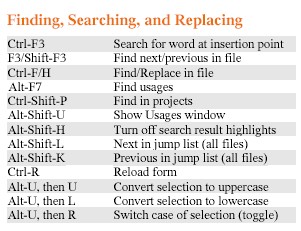

4. Other then keyboard shortcuts you can also use code templates .some of the useful code templates are as below .Using code templates saves a lot of typing in IDE.

5. There is also several JSP/Xml code templates used as NetBeans also supports Jsp development Below is list for them:







Related Posts:






Top Of Page | Trackback
If you found this page useful, consider linking to it. Simply copy and paste the code below into your web site.
It will look like this: Toolbar Settings And Shortcuts In NetBeans IDE
